
Using Live Feed to Impress Clients During Photoshoots
How to use the Live Feed feature to display AI-generated results in real time on a second screen, creating an engaging client experience during studio sessions.
What Is Live Feed?
Live Feed is a real-time display that shows your AI-generated images as they're created. Open it on any screen — a studio monitor, a TV on the wall, a tablet on a stand, or even your client's phone. Every time FramePulse completes a generation, the new image appears on Live Feed automatically. No refreshing, no manual updates.
For photographers, this transforms the client experience. Instead of shooting blind and revealing results days later, your clients see professional-quality images with replaced backgrounds appearing in real time as you photograph them.
Setting Up Live Feed in Your Studio
Hardware Options
You don't need expensive equipment. Any screen with a web browser works:
- Large TV or monitor — Mount a 40-55" display on the studio wall facing the shooting area. Clients see their images at impressive scale.
- Tablet on a stand — An iPad or Android tablet positioned near the subject gives them a personal preview without turning away from the camera.
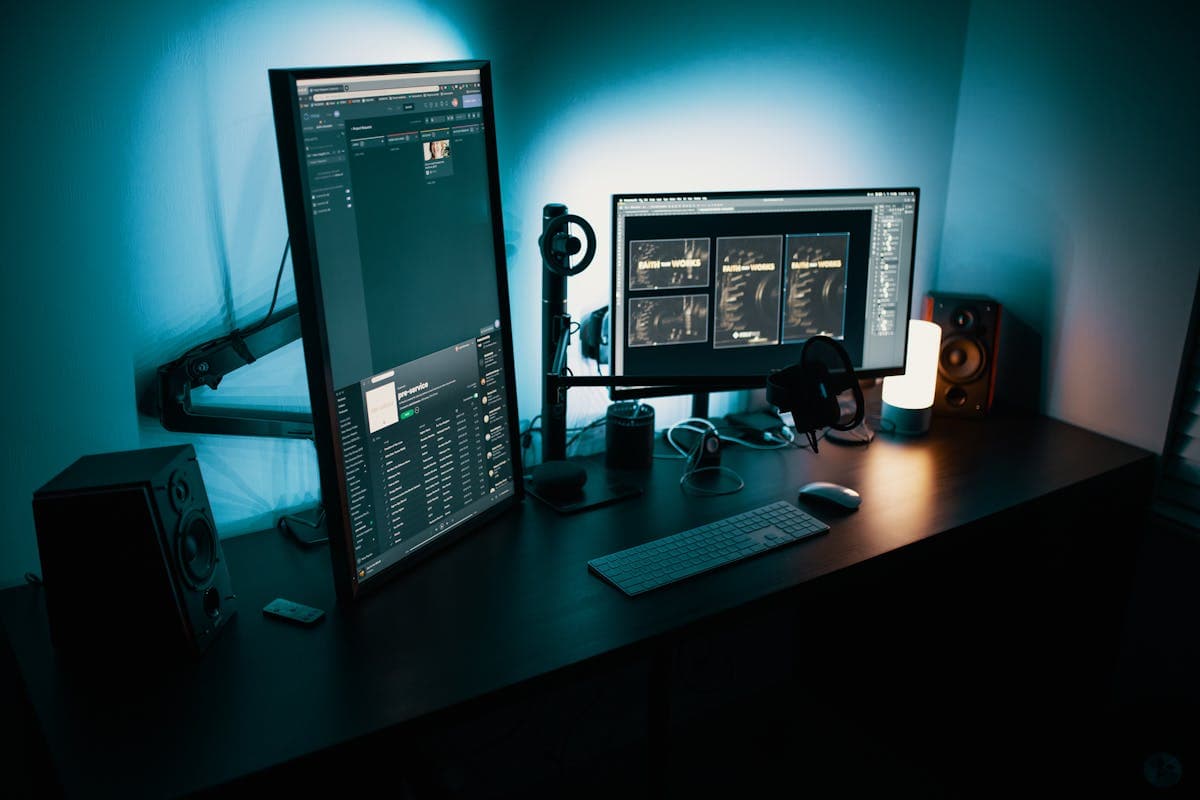
- Second computer monitor — If your workstation is visible to clients, dedicate one screen to Live Feed.
- Client's own phone — Share the Live Feed link and clients can follow along on their device.
Connecting Live Feed
Open Live Feed from the FramePulse application or from the navigation bar on the web dashboard. The feed connects via Server-Sent Events — it updates instantly without polling or manual refresh. Enter fullscreen mode for a clean, distraction-free display.
The connection is persistent. If it drops momentarily (network hiccup), it reconnects automatically and catches up with any missed images.
The Client Experience
Here's what a typical session looks like with Live Feed active:
- You position the client and take the first shot.
- Within about a minute, the processed image — with the AI-generated background — appears on the studio display.
- The client sees themselves in a completely different environment. Their reaction is immediate and enthusiastic.
- You adjust the pose, take another shot. A new result appears.
- Throughout the session, the display builds a gallery of finished images.
This immediate feedback loop changes the dynamic of the shoot. Clients become more engaged, more willing to try different poses, and more excited about the final results. They've already seen the quality — there's no uncertainty about what they're getting.
Tips for Maximum Impact
Choose dramatic backgrounds for the first few shots. Start with something visually striking — a sunset cityscape, a lush garden, or an elegant interior. The "wow factor" of the first reveal sets the tone for the entire session.
Switch prompts between setups. When you change the lighting or pose, switch to a different background prompt. This shows the versatility of the service and gives clients variety in their final gallery.
Use fullscreen mode. Remove all browser chrome and UI elements. The image should fill the entire screen for maximum visual impact.
Position the display strategically. Place it where clients can see it naturally without breaking their pose. A display slightly behind and to the side of the camera works well — they can glance at it between shots.
Let clients browse. Live Feed includes thumbnail navigation. Between setups, let clients scroll through the images generated so far. This builds excitement and helps them identify their favorite poses.
Business Benefits
Beyond the immediate "wow factor," Live Feed creates tangible business value:
- Higher booking rates. When prospective clients visit your studio and see Live Feed in action, the technology sells itself.
- Larger orders. Clients who see their images in real time tend to order more prints and products because they've already emotionally connected with the results.
- Social media content. Clients often photograph the Live Feed display with their phones and share it on social media — free marketing for your studio.
- Faster approvals. Since clients preview results during the session, there's less back-and-forth during the selection and approval phase.
- Differentiation. In a competitive market, offering real-time AI background replacement sets your studio apart from photographers still delivering results days or weeks after the shoot.
Technical Considerations
Live Feed works over any network connection. For the smoothest experience in a studio environment:
- Use a wired Ethernet connection for the display device if possible. Wi-Fi works fine but wired is more reliable for all-day sessions.
- Ensure your internet connection has stable upload bandwidth — FramePulse needs to send photos to the server for processing.
- The display device only needs to receive data (download), so even a basic connection works for the viewing end.
Live Feed is designed to be always-on. Leave it running throughout your shooting day — it handles reconnections gracefully and doesn't consume significant resources on the display device.
Rate this article
Ready to Try AI Background Replacement?
Start generating professional photos with AI-powered backgrounds in seconds.
Get Started Free