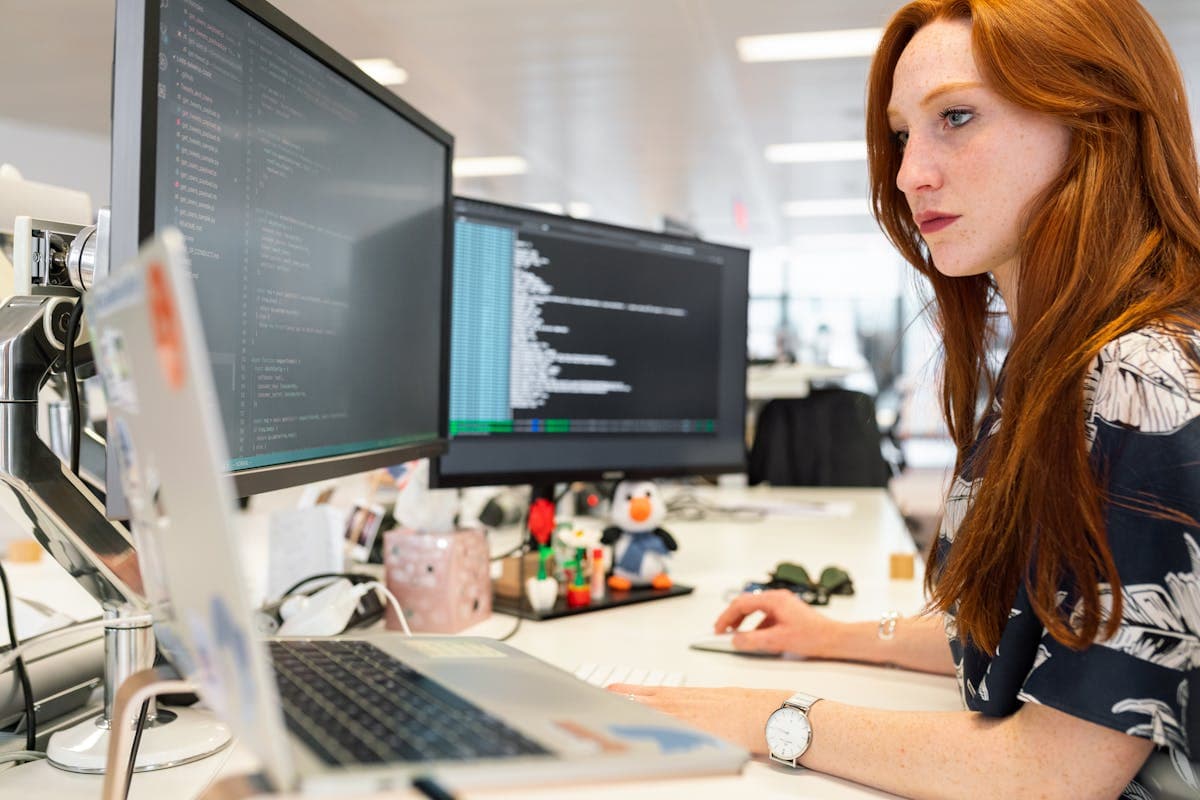


Optimizing Your Studio Setup for AI Processing
April 27, 2026Yehor Razkevych
StudioSetupPhotography

Optimizing Your Studio Setup for AI Processing

Hardware, software, and network recommendations for the smoothest AI background replacement workflow in your photography studio.

Building an AI-Ready Studio

An AI-powered photography workflow has different requirements than traditional post-production. You need reliable internet, a capable computer, and the right software configuration. Here's how to set up your studio for optimal performance.

Internet Connection

This is the most critical factor. FramePulse uploads photos to the server for processing and downloads the results. For smooth real-time workflow:

  • Minimum: 10 Mbps upload / 20 Mbps download
  • Recommended: 50+ Mbps upload / 100+ Mbps download
  • Ideal: Fiber connection with symmetric speeds

Use a wired Ethernet connection for your workstation. Wi-Fi introduces latency and occasional drops that interrupt the workflow.

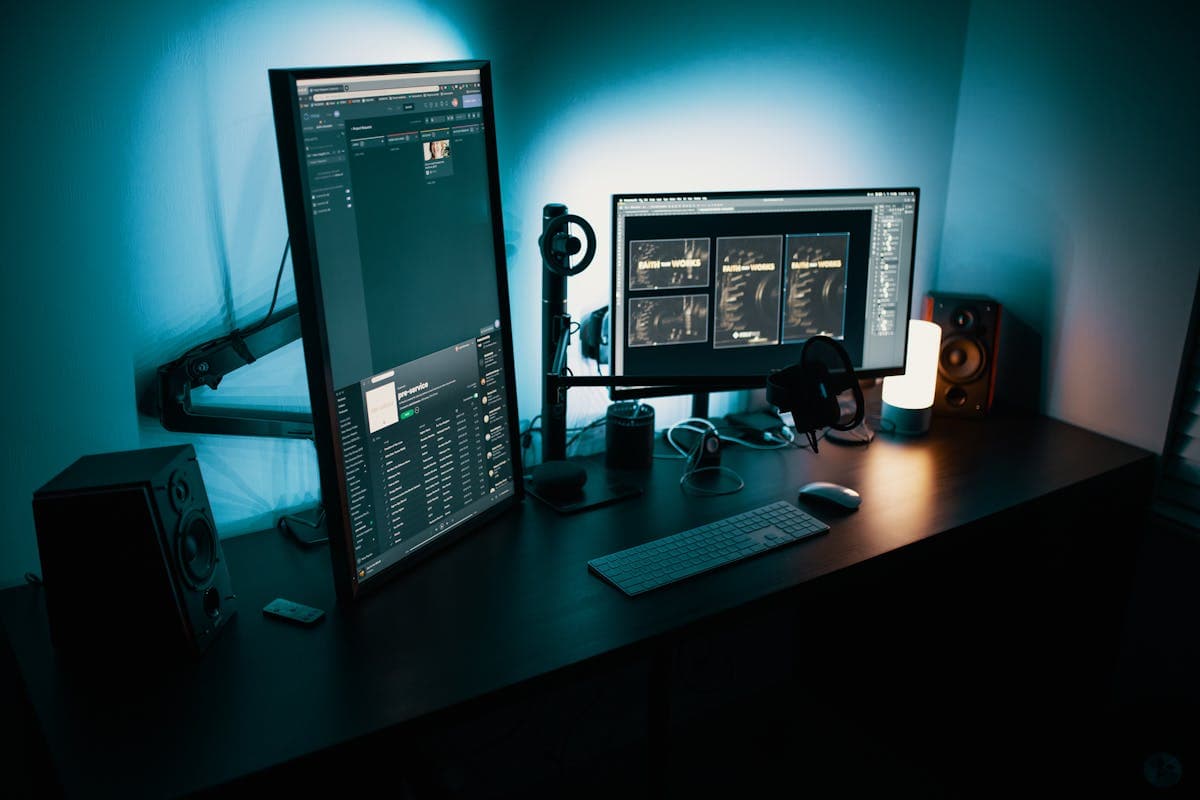
Studio workstation
A dedicated workstation with wired internet ensures reliable processing

Computer Requirements

FramePulse itself is lightweight — the heavy processing happens on the server. Your computer mainly needs to handle file I/O and the application interface:

  • OS: Windows 10/11, macOS 12+, or Linux
  • RAM: 4GB minimum, 8GB recommended
  • Storage: SSD for watch and output folders (faster file detection)
  • Display: Calibrated monitor for accurate color evaluation

Tethering Setup

Connect your camera to FramePulse via tethering software:

  • Canon: EOS Utility or Capture One
  • Nikon: Camera Control Pro or Capture One
  • Sony: Imaging Edge Desktop or Capture One

Point the tethering output to your FramePulse watch folder. Every shot goes directly into the AI pipeline.

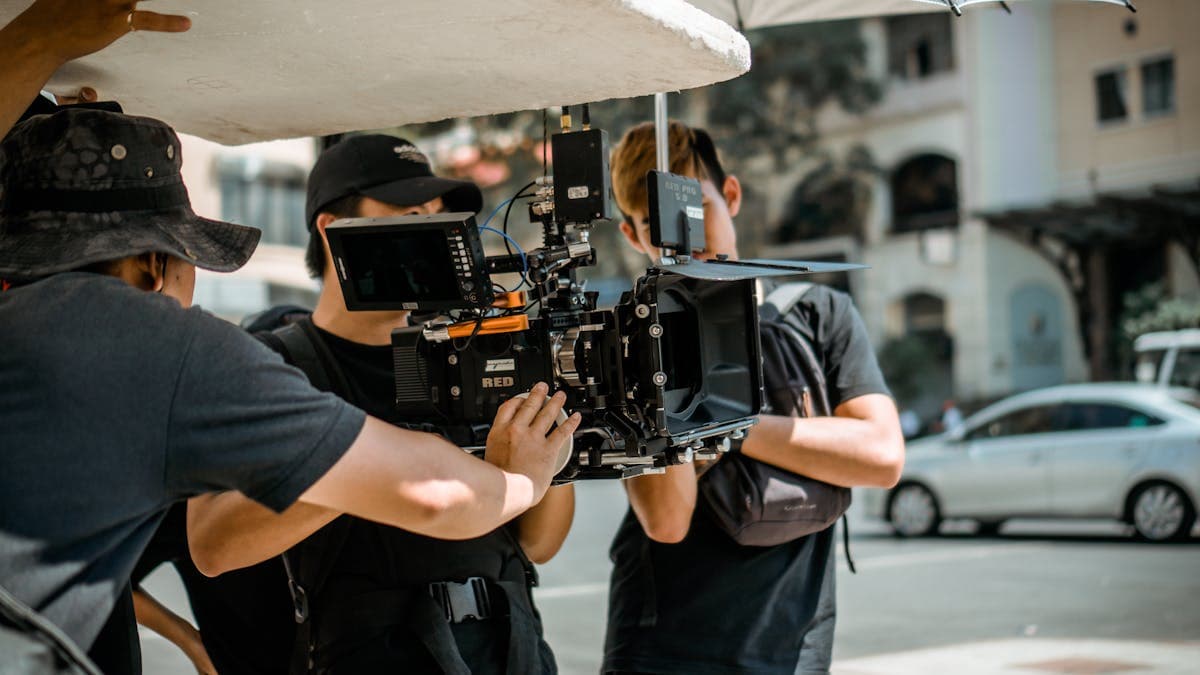
Tethered camera
Tethered shooting feeds photos directly to the AI pipeline
Studio lighting
Consistent lighting setup for predictable AI results

Live Feed Display

Dedicate a screen for Live Feed — a TV, monitor, or tablet positioned where clients can see it. Connect via browser on any device. For the best experience, use fullscreen mode and a wired connection for the display device.

Backup Strategy

Always keep your original photos. FramePulse saves results to the output folder, but your originals in the watch folder are your safety net. Set up automatic backup to an external drive or cloud storage at the end of each shooting day.

Rate this article

Ready to Try AI Background Replacement?

Start generating professional photos with AI-powered backgrounds in seconds.

Get Started Free

Comments

Optimizing Your Studio Setup for AI Processing — AI Photo Studio — AI Photo Studio