
Konfiguracja przepływu pracy w czasie rzeczywistym z FramePulse
Przewodnik krok po kroku po konfiguracji FramePulse do automatycznej zamiany tła AI w czasie rzeczywistym podczas sesji zdjęciowych.
Czym jest przepływ pracy w czasie rzeczywistym?
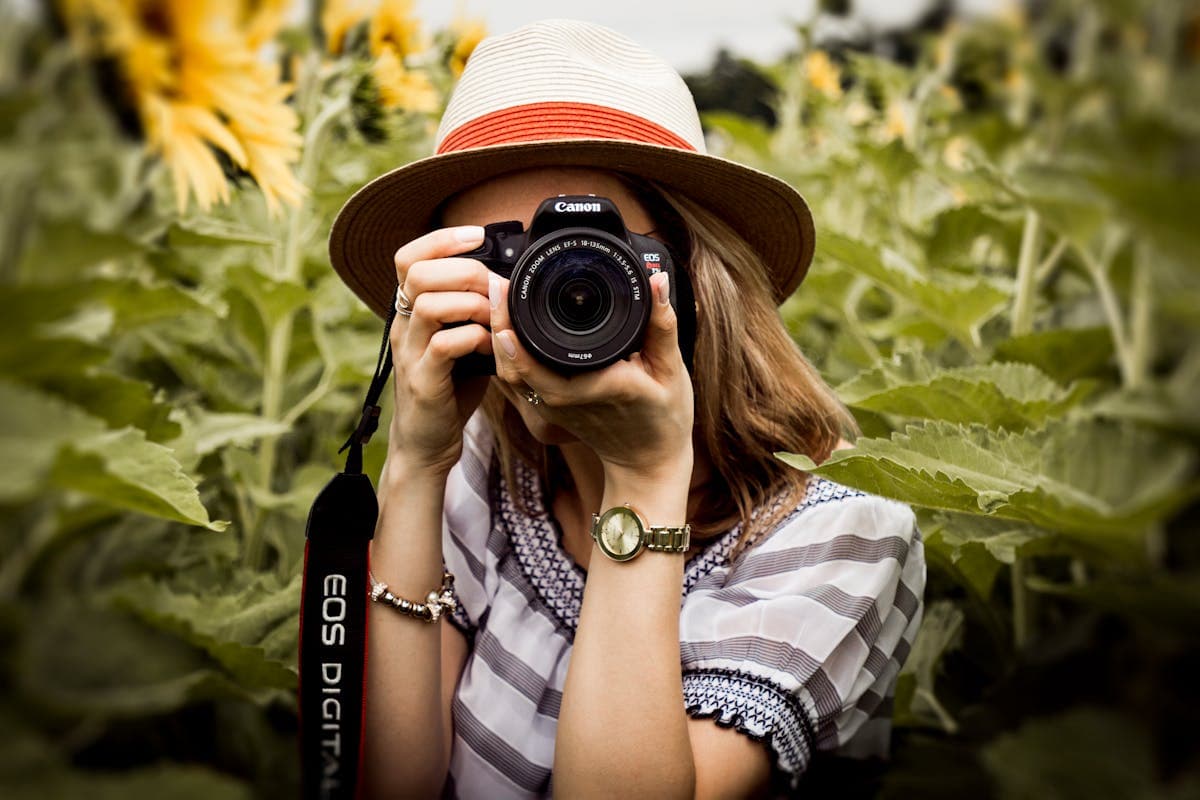
Przepływ pracy w czasie rzeczywistym oznacza, że Twoje zdjęcia przechodzą od aparatu do gotowego wyniku bez ręcznej interwencji. Fotografujesz, i w około minutę przetworzone zdjęcie pojawia się na drugim ekranie — gotowe do obejrzenia przez klienta. Żadnego przełączania do Photoshopa, żadnego przetwarzania wsadowego po sesji.
FramePulse to aplikacja desktopowa, która to umożliwia. Obserwuje folder na Twoim komputerze, wykrywa nowe zdjęcia w momencie ich pojawienia się, wysyła je do przetwarzania AI i zapisuje wyniki do folderu wyjściowego. Tymczasem Live Feed wyświetla każdą nową generację na dowolnym ekranie w Twoim studiu.
Krok 1: Skonfiguruj foldery
FramePulse potrzebuje trzech folderów:
- Folder obserwacji — Gdzie trafiają nowe zdjęcia. Skieruj oprogramowanie do tetheringu na zapisywanie bezpośrednio do tego folderu.
- Folder wyjściowy — Gdzie zapisywane są przetworzone wyniki z zamienionym tłem.
- Folder teł — Opcjonalnie. Przechowuj tu referencyjne obrazy teł.
Krok 2: Stwórz szablony promptów
Prompty opisują tło, które chcesz, aby AI wygenerowało:
- „Profesjonalne studio z miękkim szarym gradientowym tłem i subtelnym światłem konturowym"
- „Jesienna scena parkowa ze złotymi dębami, miękkim bokeh i ciepłym popołudniowym słońcem"
- „Nowoczesne minimalistyczne biuro z panoramicznymi oknami z widokiem na miasto"
Krok 3: Skonfiguruj ustawienia generowania
- Jakość wyjściowa — Wybierz między rozdzielczością 2K a 3K.
- Format wyjściowy — JPEG dla mniejszych plików, PNG dla jakości bezstratnej.
- Region API — Wybierz najbliższy region dla najszybszego czasu przetwarzania.
Krok 4: Włącz obserwator plików
Włącz File Watcher w FramePulse. Aplikacja teraz monitoruje Twój folder. Obsługiwane formaty obejmują standardowe obrazy (JPG, PNG, TIFF, WebP) i pliki RAW (Canon CR2, Nikon NEF, Sony ARW, Adobe DNG i inne).
Krok 5: Otwórz Live Feed
Live Feed to wyświetlacz w czasie rzeczywistym pokazujący każdą nową generację. Otwórz go z FramePulse lub z paska nawigacji aplikacji webowej. Obsługuje tryb pełnoekranowy i nawigację miniaturami.

Krok 6: Zacznij fotografować
Każde zdjęcie przechodzi tę ścieżkę:
- Aparat wykonuje zdjęcie
- Oprogramowanie do tetheringu zapisuje je do folderu obserwacji
- FramePulse natychmiast wykrywa nowy plik
- Zdjęcie jest wysyłane na serwer z Twoim promptem
- AI generuje nowe tło
- Wynik jest zapisywany do folderu wyjściowego
- Live Feed aktualizuje się nowym obrazem
Cały proces zajmuje około minuty na obraz. Twój klient widzi wynik na wyświetlaczu studyjnym wkrótce po zrobieniu zdjęcia.
Rozwiązywanie typowych problemów
Zdjęcia nie są wykrywane? Upewnij się, że File Watcher jest włączony i ścieżka do folderu jest poprawna.
Wolne przetwarzanie? Przełącz się na bliższy region API. Zmniejsz jakość do 2K dla szybszego przetwarzania podczas sesji.
Niespójne wyniki? Zablokuj ekspozycję i balans bieli aparatu. Sprawdź, czy prompt odpowiada Twojemu oświetleniu.
Oceń ten artykuł
Gotowy na wymianę teł z AI?
Zacznij generować profesjonalne zdjęcia z tłami AI w kilka sekund.
Zacznij za darmo